Deadline at school
- Deadline - Online monitoring
- Deadline - Render managers
- Deadline - Temporarily disabling your worker
- Deadline - Event Plugins
Deadline - Online monitoring
Our Deadline render farm can be monitored online through our monitor website! This is ideal for when you're on the move and unable to VPN into your school computer. It also has ChatGPT error parsing and image previews.
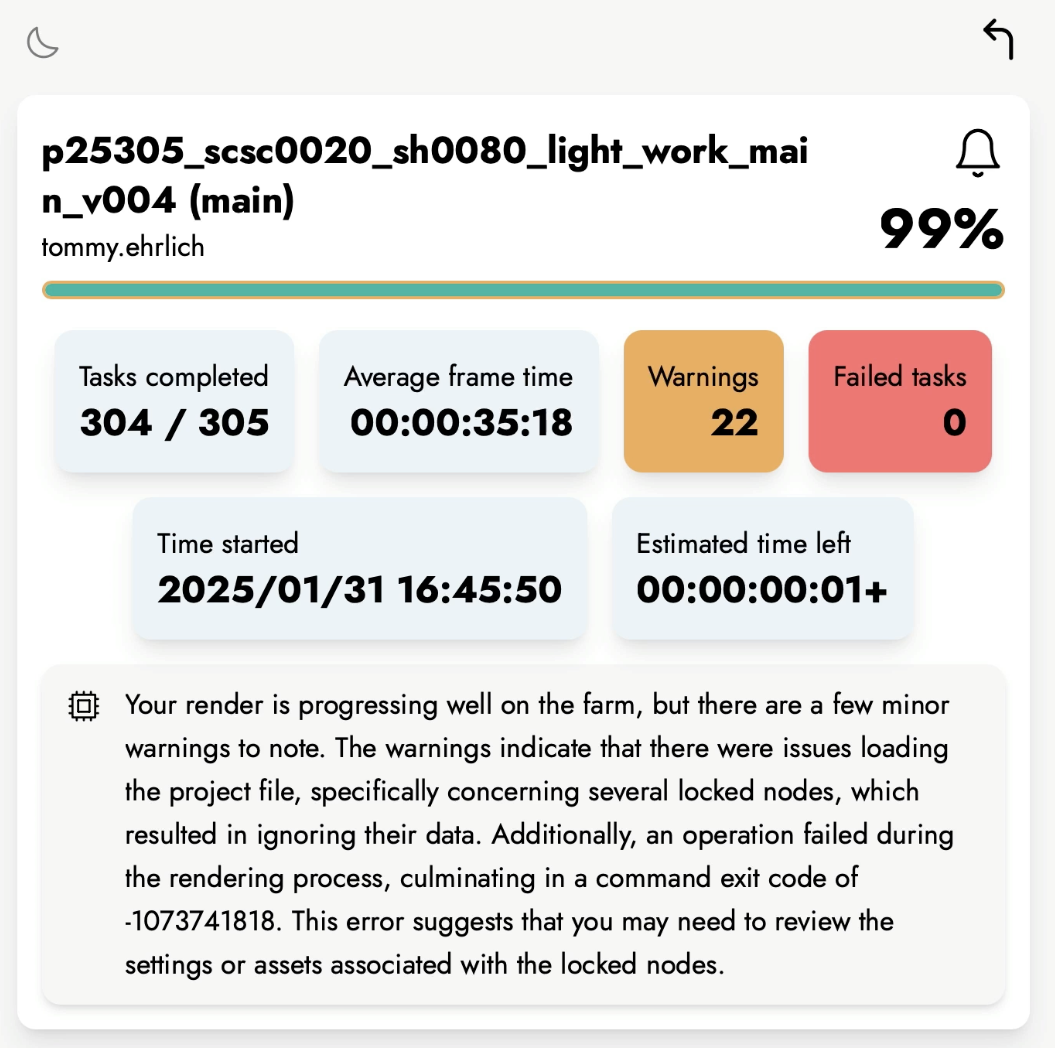
Deadline Web App by Mervin van Brakel
Deadline - Render managers
From the second year on, every class has 2 render managers. The render managers from all years work together to make sure the farm runs smoothly, and its resources are divided fairly among all the years. Render managers also have admin level access in the deadline monitor, so they can adjust running jobs and worker settings if need be. Sometimes a job needs to be rushed out the door, render managers makes sure that can be done in a way that won't cause any conflicts! Here's a list of the current render managers:
2nd year:
- Valentijn van Bergen
- Sven Brinkhuis
3rd year:
- Aafke van Roon
- Robbert Scholten
4th year:
- Luuk Kamphuis
- Nigel Kenepa
Deadline - Temporarily disabling your worker
Sometimes you might not want your computer to be used for farm rendering, for example when you're caching a heavy sim or need to use it for realtime rendering engines like Unreal. In this case you can temporarily take your machine off the farm. Here's how:
First you need to open the Deadline monitor, select your worker and click on Modify Worker Properties.

There you can go to Extra Info and fill in a reason in one of these two fields, for example your name and what you're doing:
- No rendering - Until morning: for today. This field is cleared automatically every day after 9:00, so fill it in again the next day if you need your computer for longer.
- No rendering - Permanent: stays until someone removes it. Ask your render manager first before you fill this one in.
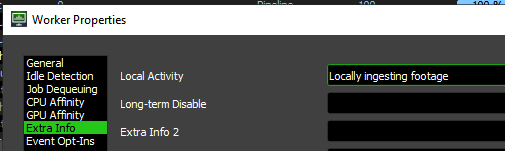
Once you've filled in a reason, your computer stops picking up new jobs within about a minute. Your worker still shows as enabled in the Monitor; that's normal.
Want your computer to render along again? Simply clear the field.
This is handled by the LocalActivityOptOut event plugin, see Deadline - Event Plugins.
Deadline - Event Plugins
We have a number of custom Event Plugins on our render farm. They are mostly quality of life improvements that keep the farm running smoothly, and most of them work in the background without you having to do anything. Here's a quick overview:
- EnergyCostCalculator – shows what a render roughly cost
- ErrorTriage – stops broken jobs early and explains what went wrong
- FrameValidator – checks for missing or broken frames after a job
- HealthCheck – render PCs check themselves for problems
- LicenseLimiter – keeps jobs within the number of licenses we have
- LocalActivityOptOut – lets you take your PC off the farm temporarily
- NightlyWorkerRestart – restarts all Workers every evening
- NukeCleanup – removes leftover Nuke .tmp files
ErrorTriage and FrameValidator explain what they did at the start of the job comment. So if your job behaves unexpectedly, check the comment first!
EnergyCostCalculator
After a job finishes, this plugin calculates its estimated energy cost: the render time of all tasks of the job × the cost per render hour.
- The total goes into Extra Info 0, the cost per frame into Extra Info 1. Turn those columns on in the Monitor to see them.
- Is a job suspended, or does it fail? Then it gets the cost of the frames that were already finished.
- To calculate it by hand for older jobs, use Scripts > CalculateEnergyCosts.
- The cost per render hour is set in Tools > Configure Event Plugins > EnergyCostCalculator.
It's not a problem if a job is expensive, the render farm is there to be used; but as an artist it's good to be aware that renders aren't free.
Originally written by Mervin van Brakel
ErrorTriage
This plugin looks at every error of a job to figure out what's going on, so you can quickly see what's wrong with your job, and a broken job doesn't keep rendering forever.
- Scene problem: several PCs get exactly the same error (frame numbers and paths don't count). The job is set to failed; fix your scene and submit again.
- PC problem: for example "unable to find Houdini on the machine". Only that PC is blocked for your job; the rest keeps rendering.
- Out of memory: that PC is taken off your job. If it happens on 3 PCs, your job is too heavy and it halves the number of tasks per PC by itself (10 → 5 → 3 → 2 → 1).
You can see what it did at the start of the job comment, prefixed with [ErrorTriage].
Originally written by Robbert Scholten
FrameValidator
After a job finishes, this plugin checks whether all your frames are really there.
A frame is bad when the file is missing, or when it's much smaller than the frames around it (for example a half-written EXR). Gradual changes like fades are not flagged.
- Bad frames are automatically re-rendered once.
- For big tasks, like simulations or a whole sequence in one task, it only reports them, because re-rendering would take hours.
- Only your last frame is missing, but there is a file one frame before your first frame? Then your scene numbers its output one frame too low. It reports this, but re-rendering won't fix it; check your time offset.
- Movies (.mov, .mp4) are skipped.
The bad frames are listed at the start of the job comment, prefixed with [FrameValidator].
Originally written by Robbert Scholten
HealthCheck
Every render PC checks itself 4× a day (8:00, 12:00, 16:00 and 20:00) for things that can break renders:
- environment variables and pipeline version
- whether Nuke, Houdini, Maya and Blender are installed
- the GPU
- the network drives
- free disk space
- how long it's been since the PC was last restarted
If everything is fine, you won't hear from it. If something is wrong, it goes at the start of the Worker comment, prefixed with [HealthCheck date time], and it disappears again once it's fixed. To check right away, select Workers and right-click > Scripts > HealthCheckNow.
This is mainly useful for the render managers; as an artist you don't need to do anything with it, but if you see a [HealthCheck] comment on a PC, you know why it's acting up.
Originally written by Robbert Scholten
LicenseLimiter
Some of our nodes (for example ReduceNoise from NeatVideo) only have a limited number of floating licenses. If every machine on the farm renders frames with that node at the same time, you get license errors.
Some submitters, like our Nuke submitter, send along how many licenses a job may use. On submission, this plugin sets the job's Machine Limit to that number, so no more machines render the job than we have licenses. If you had already set a stricter Machine Limit yourself, that one stays. Jobs without this number are left unchanged.
Originally written by Mervin van Brakel
LocalActivityOptOut
This lets you temporarily take your PC off the render farm, for example when you're running caches on it. See Deadline - Temporarily disabling your worker for a step-by-step guide with screenshots.
Fill in something in your Worker's Extra Info, for example your name or a reason:
- No rendering - Until morning: cleared automatically every day after 9:00.
- No rendering - Permanent: stays until someone removes it. Ask your render manager first before you use this one.
As long as something is in there, that PC won't pick up any jobs. Clear the field and the PC renders along again.
Use this fairly; we want as many machines as possible to keep rendering.
Originally written by Mervin van Brakel
NightlyWorkerRestart
Every evening from 21:00, every Worker gets restarted, so the PCs pick up pipeline updates and the farm renders at full power at night.
- Idle: restarts right away.
- Rendering: restarts once its current task is done, so your render isn't lost.
- Offline or stuck (stalled): is started up again.
Only PCs that are switched on and running the Deadline Launcher can be reached.
Originally written by Robbert Scholten
NukeCleanup
Nuke first writes each frame to a temporary .tmp file (something like -935512534559029538.tmp) and renames it when the frame is done. If a render is interrupted, those files are left behind in your render folder.
This plugin cleans them up after a Nuke job. It only removes files with Nuke's own naming, and only if they haven't been touched for 30 minutes, so files from a render that's still running are left alone.
This is our modified, safer version of Deadline's standard NukeCleanup plugin.
Originally written by Robbert Scholten