# Houdini - Rendering on the farm
You'll probably want to render your Houdini projects on our render farm. The farm renders with the same Houdini version you submit from, so you don't have to worry about versions.
### Before you submit
- Save your .hip file on our storage server. A file that isn't saved, or is saved on a local drive, can't be submitted.
- All files your scene uses (textures, HDRIs, caches, USD files, ...) have to be on the storage server too.
- Set the output path on your render node to a location on our storage server, like this example:
[](https://docs.vfxim.nl/uploads/images/gallery/2024-10/houdinifx-gbrke4okgj.png)
### Two ways to submit
There are two ways to send your render to the farm. Both work equally well, so pick whichever suits your scene:
- **The Render menu:** quickest when you just want to render one node.
- **A Deadline node:** handy when you render several nodes, each with its own settings, or when one has to wait for another (for example a cache before a render).
### Option 1: the Render menu
Click *Render > Submit To Deadline* in the top menu bar. The Deadline submission window opens, with most fields already filled in for you:
[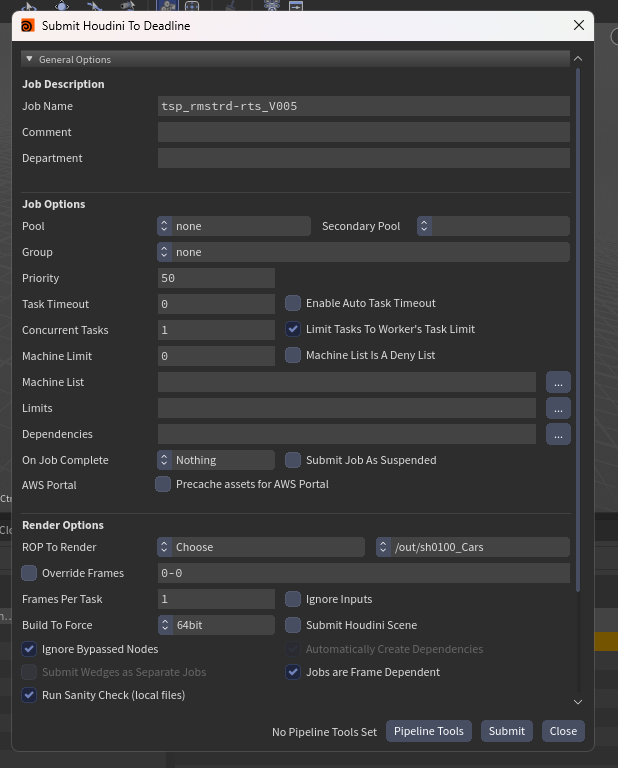](https://docs.vfxim.nl/uploads/images/gallery/2026-11/Rhjimage.png)
- **Job Name:** the name of your job in the Deadline Monitor. Change it to something descriptive.
- **Comment:** shown in the Comment column of the Monitor. Optional.
- **Pool / Group:** You can specify only using 128gb machines for rendering, if you do not need that; just leave it on *none*.
- **Priority:** jobs with a higher priority are picked up first when a PC is free. Don't change it unless you've agreed on a different number with your render managers.
- **Concurrent Tasks:** how many tasks one PC renders at the same time. Leave it on 1 for renders. For light jobs, like small caches, you can set it a bit higher.
- **ROP To Render:** *Choose* lets you pick one render node from the list, *Selected* submits the nodes you have selected, and *All* submits every render node in your scene.
- **Override Frames:** the frame range comes from your render node. Tick this to render other frames, for example 1,10,20 for a few test frames.
- **Frames Per Task:** how many frames one PC renders before it picks up the next task. 1 is fine for most renders.
- **Run Sanity Check (local files):** leave this on, see below.
- Leave the other options as they are.
Press *Submit*, and your job shows up in the Deadline Monitor. Your settings are saved with your .hip file, so they're still there the next time you submit.
### Option 2: a Deadline node
Go to the *out* network. Create a *fetch* node and set the source to the node you want to render:
[](https://docs.vfxim.nl/uploads/images/gallery/2024-10/houdinifx-ofq0cimnxp.png)
Then add a *deadline* node and connect the fetch node to it. Nodes connected one after another render in that order:
[](https://docs.vfxim.nl/uploads/images/gallery/2024-10/houdinifx-ucfxa87ipw.png)
The deadline node has the same options as the submission window above. Change the job name to something descriptive and check the frame range. If your render is very lightweight you might want to change the *concurrent tasks* option in the Job Options tab to something a bit higher.
Make sure to set the frame range properly on both the deadline node *and* the fetched node that should be rendered.
[](https://docs.vfxim.nl/uploads/images/gallery/2024-10/houdinifx-yidcg2dxv3.png)
Press *Submit To Deadline* on the node to send your render to the farm.
Working in our ShotGrid pipeline? Then use the *NFA\_Deadline* node instead, see [Houdini - USD workflow](https://docs.vfxim.nl/books/houdini-at-school/page/houdini-usd-workflow).
### The sanity check
Whichever way you submit, we first check the nodes you're about to render. If any of them use files on a local drive (like C:\\), you get a list of those files. Those files won't be found on the farm, so your render will fail or come out wrong. Press *Cancel* and move the files to the storage server, or press *Submit Anyway* if you're sure.
### Caches
File Cache nodes aren't picked up when you submit. To cache on the farm, go to the *out* network and create a *fetch* node pointing to the ROP inside your File Cache node, or use a *ROP Geometry Output* node. Then submit that with either option.
### When something goes wrong
If your job fails, check the job comment in the Deadline Monitor first; our [event plugins](https://docs.vfxim.nl/books/deadline-at-school/page/deadline-event-plugins) explain there what happened.
Sanity check by Robbert Scholten.