Nuke - Rendering on the farm
Submitting your comp to our render farm is quite easy. First make sure that all the files used in your comp (and your Nuke file itself, of course) are stored on our Storage server. Then select the Write node you want to render and click Render > Submit to Deadline in the menu bar, or press F5. The render on farm button on a ShotGrid write node opens the same window.
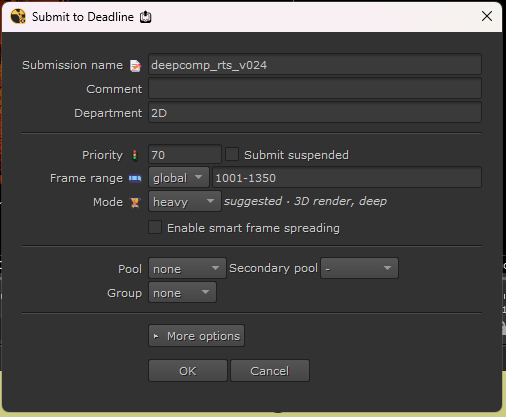
Most of the time you only have to check the name, the frame range and the mode, and press OK.
Job
- Submission name: the name of your job in the Deadline Monitor. Filled in with your script name.
- Comment: shown in the Comment column of the Monitor. Optional.
- Department: just a label, you can leave it on 2D.
Render
- Priority: jobs with a higher priority are picked up first when a PC is free. Leave it at 70 unless you've agreed on a different number with your render managers.
- Submit suspended: the job waits in the queue until you resume it in the Monitor.
- Frame range: global uses your project frame range, input the frame range of the Write node, and in-out the in and out points of your viewer. You can also just type a range.
- Mode: how much one PC renders at the same time (see below).
- Enable smart frame spreading: renders the first frame first, then the last, then the middle, and then fills in the gaps evenly. Handy for a long render when you want to know quickly whether it renders all the way through.
Modes
One PC on the farm can render several tasks of your job at the same time. The mode decides how many:
- light: 10 tasks at once on a PC, 3 frames per task
- medium: 5 tasks at once, 2 frames per task
- heavy: 1 task at a time, 1 frame per task
- custom: type your own numbers
A light render is a lot faster, but a heavy comp in light mode makes PCs run out of memory and crash. That's why the submitter suggests a mode: it looks at the nodes that feed your Write (how many there are, and whether there are 3D renders, deep or retimes) and picks that mode for you. Next to the mode you can see why, for example suggested · 3D render, deep. Nothing is rendered for this, so it's a guess; you can always pick another mode.
Do your renders still crash with memory errors? Choose a heavier mode. The farm also does this by itself after a few crashes, see ErrorTriage.
Rendering a movie (.mov, .mp4, ...)? A movie can't be split over several PCs, so the whole range renders as one task on one PC, and the mode is hidden. This is much slower than rendering an image sequence: for long or heavy renders, render EXRs and make the movie afterwards.
Farm
- Pool: only PCs in this pool render your job. Leave it on none unless you've agreed otherwise with your render managers. For example, 128gb only renders on the PCs with 128 GB memory, for very heavy comps.
- Secondary pool: PCs in this pool pick up your job when the PCs of the first pool are busy.
- Group: leave this on none.
More options
Click More options for the settings you'll rarely need.
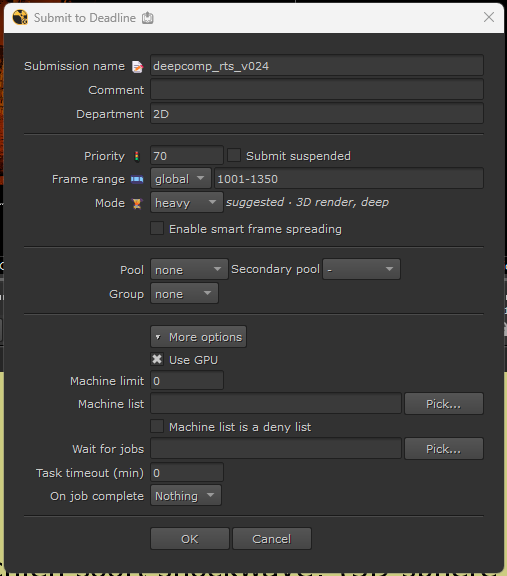
- Use GPU: lets GPU nodes (ZDefocus, Kronos, BlinkScript, Inference, ...) use the graphics card instead of the processor. On by default. Turn it off when a GPU-heavy script crashes on the farm: all tasks on a PC share one graphics card.
- Machine limit: the most PCs that render your job at the same time. 0 = no limit.
- Machine list: only these PCs render your job, or with Machine list is a deny list on: these PCs never render it. Use Pick... to choose them from a list.
- Wait for jobs: your job only starts when these jobs have finished, for example the Houdini render you're comping. Use Pick... to choose from your jobs.
- Task timeout (min): a task that renders longer than this is stopped and tried again. 0 = no limit.
- On job complete: Archive or Delete removes the job from the Monitor when it's done. Your rendered files are not touched.
Checks before submitting
When you press OK, the submitter checks your script for the most common reasons a render fails on the farm:
- Your script has to be saved on the storage or education server. If it has unsaved changes, it asks to save it.
- Read nodes or a Write node with a local path (like C:\ or your desktop), and Read nodes with errors: you get a warning and can still choose to submit.
- Proxy mode on without a proxy path on the Write: it offers to turn proxy mode off.
- MagicDefocus is not supported on the farm: replace it with OpenDefocus. Disabled MagicDefocus nodes are fine.
- NeatVideo nodes: we only have a limited number of licenses, so your job gets a license limit. See LicenseLimiter.
- Frames that already exist in your output folder: it tells you which ones, so you don't overwrite a render by accident.
After submitting, your job shows up in the Deadline Monitor. If something goes wrong during the render, check the job comment first; our event plugins explain there what happened.
Deadline submission tools by Gilles Vink, updated by Robbert Scholten