# Substance Painter - Installation
Unlike all our other software, Substance Painter isn't installed by default on your school PC. This has to do with Adobe licensing. To install it, first, open up Adobe Creative Cloud from the Windows start menu:
[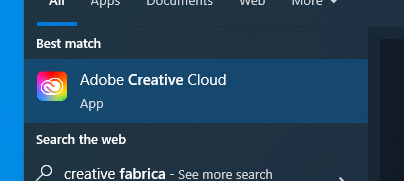](https://docs.vfxim.nl/uploads/images/gallery/2024-10/8dmiiiifnh.png)
Log in with your **school** email account, this will take you to the AHK login page where you can log in. After logging in you can install Substance Painter. To do so, browse to apps and find Substance Painter. Install **version 10.0.1**. ***Do not install the latest version***. You can do this by pressing the three dots and selecting *Other versions.*
We use version 10.0.1 because the latest versions are not compatible with our ShotGrid pipeline integration.
[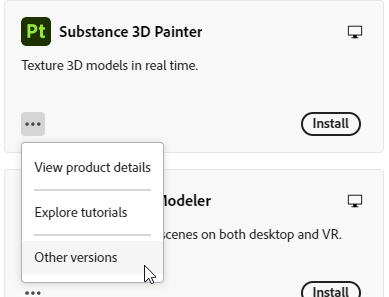](https://docs.vfxim.nl/uploads/images/gallery/2024-10/creative-cloud-wdneaodbjk.png)
[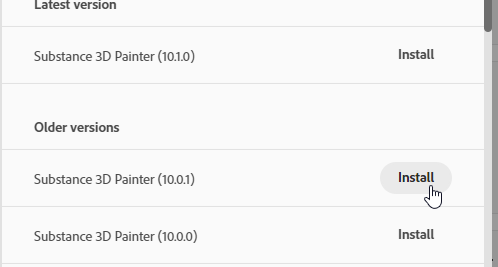](https://docs.vfxim.nl/uploads/images/gallery/2024-10/creative-cloud-jamnexh37r.png)