# Substance Painter - ShotGrid - Publishing

Publishing in Substance Painter is very similar to publishing in our other tools, you'll just have to make sure your export settings are configured correctly before publishing.

Open the *Export textures* menu (ctrl + shift + e). Make sure the output template is set to *Document channels + Normal + AO (With Alpha)* and make sure the *file type* is set to exr. You don't have to configure the *output directory*, as that's handled automatically. You can now click *Save settings*.

[![Adobe_Substance_3D_Painter_dv7A1ONGpW.png](https://docs.vfxim.nl/uploads/images/gallery/2024-10/scaled-1680-/adobe-substance-3d-painter-dv7a1ongpw.png)](https://docs.vfxim.nl/uploads/images/gallery/2024-10/adobe-substance-3d-painter-dv7a1ongpw.png)

<p class="callout info">If you're using UDIMs you should make sure the output template you've picked separates the UDIMs with a dot, which looks like this in your output map: `(.$udim)`</p>

<p class="callout danger">Double check your "Document channels + AO (With Alpha)" has the correct UDIM file naming convention! If not, use a PBR preset instead.</p>

Now we can publish our textures. Open the ShotGrid menu and press *Publish...* This causes a pop up to appear:

[![python_UrhJ19kxEf.png](https://docs.vfxim.nl/uploads/images/gallery/2024-10/scaled-1680-/python-urhj19kxef.png)](https://docs.vfxim.nl/uploads/images/gallery/2024-10/python-urhj19kxef.png)
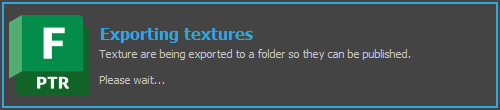
After a couple seconds the publish menu will open. Take a nice screenshot and press publish!

[![python_3QX6BeJMBj.png](https://docs.vfxim.nl/uploads/images/gallery/2024-10/scaled-1680-/python-3qx6bejmbj.png)](https://docs.vfxim.nl/uploads/images/gallery/2024-10/python-3qx6bejmbj.png)
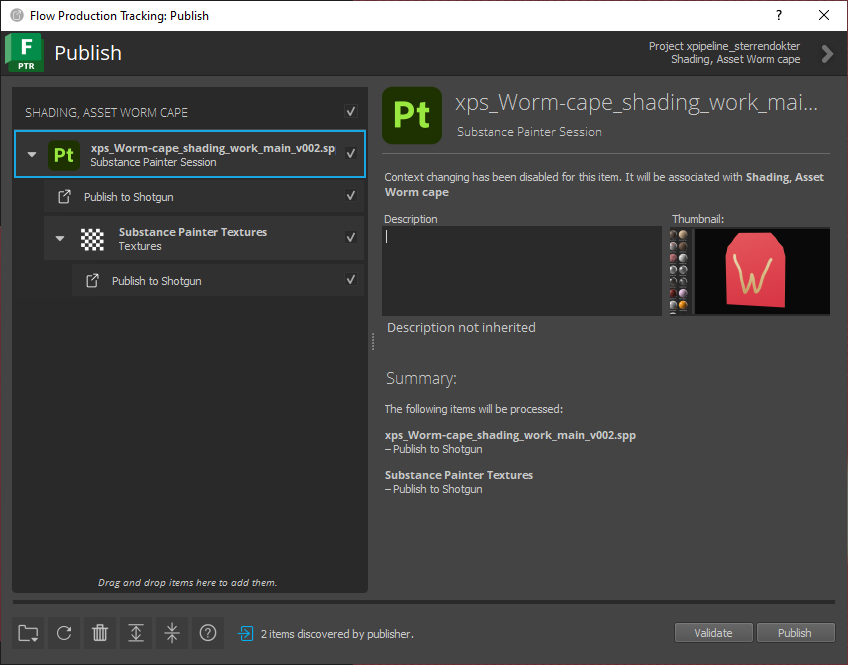
<span style="color: rgb(149, 165, 166);">Texture publish logic by Mervin van Brakel.</span>