# ShotGrid - Pipeline - Creating a project

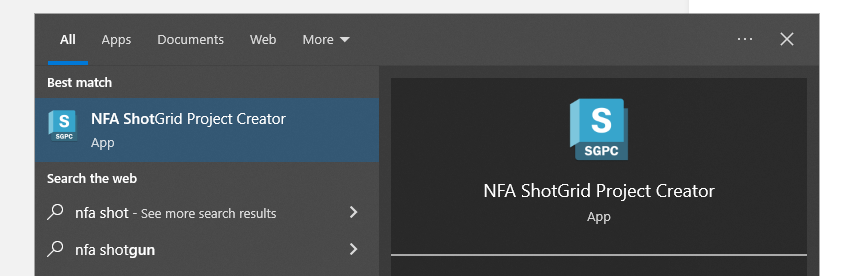
<span style="color: rgb(0, 0, 0);">The first step in any project that uses our ShotGrid pipeline is to create one using our project creator software. The project creator makes it easy to set up a project and makes sure your project gets created using the correct settings. You can open it up by going to the Windows start menu and searching for *NFA ShotGrid Project Creator.*</span>

<p class="callout danger">You **have** to use the project creator software. Do not create a project using the ShotGrid website. </p>

[![chrome_FFRLQHtSzY.png](https://docs.vfxim.nl/uploads/images/gallery/2024-10/scaled-1680-/chrome-ffrlqhtszy.png)](https://docs.vfxim.nl/uploads/images/gallery/2024-10/chrome-ffrlqhtszy.png)

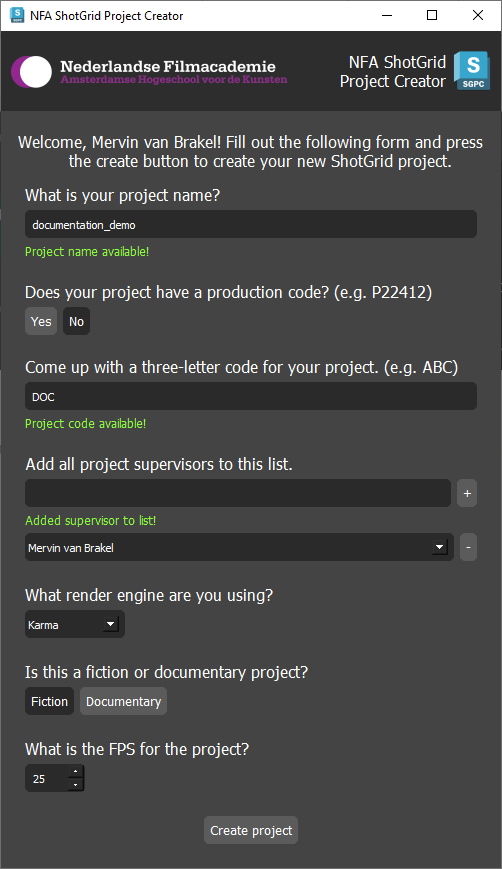
<span style="color: rgb(0, 0, 0);">Your ShotGrid account used during creation is automatically fetched from your school PC username, so make sure you run the application on your own computer. The software looks like this:</span>

[![NFA_ShotGrid_Project_Creator_ziEPQcfvIC.png](https://docs.vfxim.nl/uploads/images/gallery/2024-10/scaled-1680-/nfa-shotgrid-project-creator-ziepqcfvic.png)](https://docs.vfxim.nl/uploads/images/gallery/2024-10/nfa-shotgrid-project-creator-ziepqcfvic.png)

It pretty much speaks for itself, fill in all the fields, make sure all the validation is green, and click *Create project*!

<span style="color: rgb(149, 165, 166);">Original command-line project creation tool by Gilles Vink, rewritten into a standalone GUI application by Mervin van Brakel.</span>