# Booking the viewing space
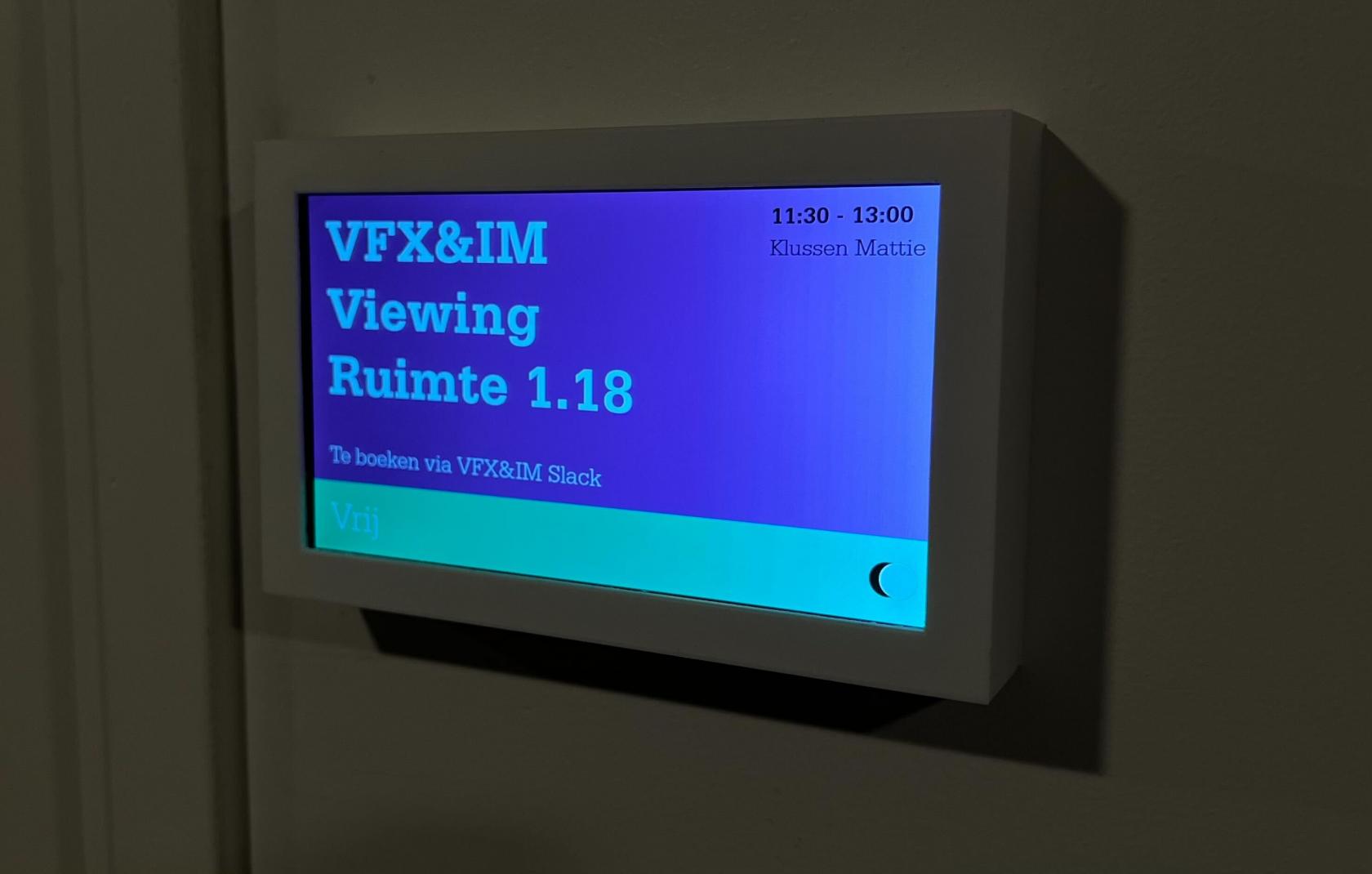
Next to the door of the viewing space you'll find a small screen that displays the booking information for today:
[](https://docs.vfxim.nl/uploads/images/gallery/2025-05/img-1308.jpg)
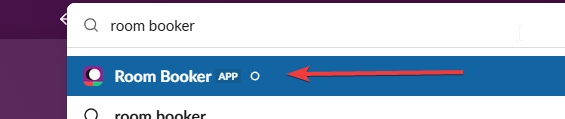
You can make a reservation through our Slack using the Room Booker bot. Search for it in the top bar and click on it:
[](https://docs.vfxim.nl/uploads/images/gallery/2025-05/slack-fxibaw0c1t.png)
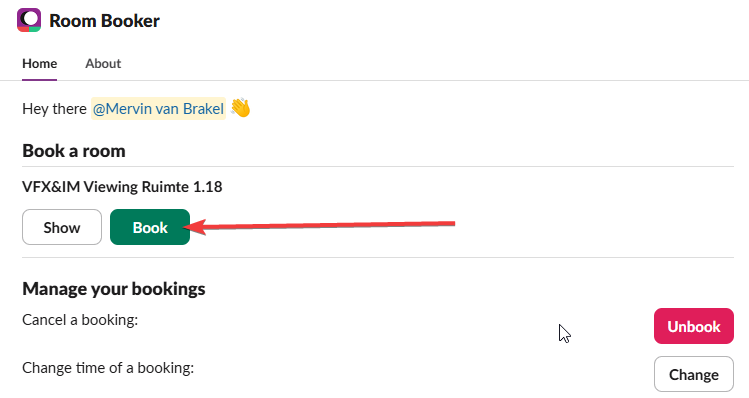
Click book to open the booking menu, there you can fill in the required information!
[](https://docs.vfxim.nl/uploads/images/gallery/2025-05/slack-qttlofohyk.png)
Please check if AM/PM is correct on your booking time. Slack doesn't have 24 hour time options so you might accidentally book in the middle of the night instead of during the day!
Booking system by Mervin van Brakel. [Also open sourced on GitHub! ](https://github.com/BreakTools/RoomBooker)