
Blender - Rendering on the farm
Blender is also supported on our Deadline render farm. FirstThe makefarm surerenders allonly our officially supported version
Before you submit
- Save your
files,.blendincluding your Blender file, are storedfile on our storage server.TheADeadlinefilepluginthat isn't saved, or isalreadysavedinstalledonforayou,localbutdrive,youcan'tdobe submitted. - All files your scene uses (textures, HDRIs, linked libraries, caches, ...) have to
enablebeiton the storage server too. Textures and sounds can also be packed into your .blend with File > External Data > Pack Resources. Linked libraries, movie clips and VDB volumes can't be packed. - Set the output path in
yourOutputpreferences.Properties
to
Onceayou'vefolderdone that you can useon the storage server. Local drives (like C:\) don't work on the farm.

Submitting
Click Render > Submit toTo Deadline button in the Rendertop tab.menu bar.

Do some files in your scene point to a local path? Then you first get a list of them. Press OK to submit anyway, or close the window and fix them first.
After a few seconds the Deadline submission window opens. Most fields are already filled in for you:
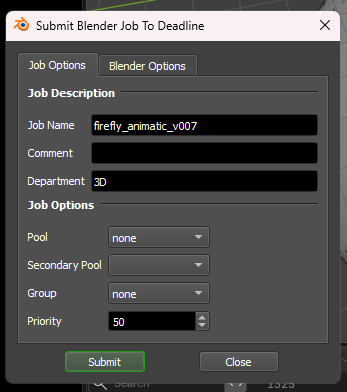
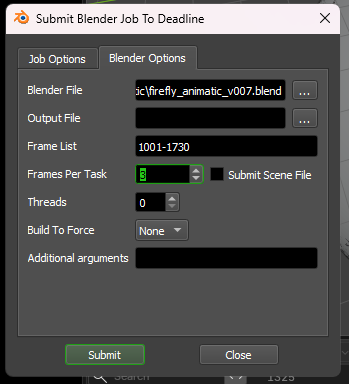
Job Options tab:
- Job Name: the name of your job in the Deadline Monitor. Filled in with your file name.
- Comment: shown in the Comment column of the Monitor. Optional.
- Pool / Group: leave these on none unless you've agreed otherwise with your render managers.
- Priority: jobs with a higher priority are picked up first when a PC is free. Don't change it unless you've agreed on a different number with your render managers.
Blender Options tab:
- Output File: leave this empty to use the output path from your .blend file.
- Frame List: the frames to render, filled in from your scene. For example 1-250, or 1,10,20 for a few test frames.
- Frames Per Task: how many frames one PC renders before it picks up the next task. 1 is fine for most renders.
- Leave the other options as they are.
Press Submit, and your job shows up in the Deadline Monitor. If something goes wrong during the render, check the job comment first; our event plugins explain there what happened.