
Deadline - Temporarily disabling your worker
Sometimes you might not want your computer to be used for farm rendering, for example when you're caching a heavy sim or need to use it for realtime rendering engines like Unreal. In this case you can temporarily disable farm rendering ontake your machine.machine off the farm. Here's how:
First you need to open the Deadline monitor, select your worker and click on Modify Worker Properties.

There you can go to Extra Info and fill in a reason in one of these two fields, for disablingexample your workername and what you're doing:
- No rendering - Until morning: for today. This field is cleared automatically every day after 9:00, so fill it in again the next day if you need your computer for longer.
LocalNoActivityrendering - Permanent:field.stays until someone removes it. Ask your render manager first before you fill this one in.
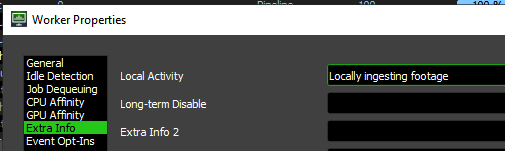
Once you've filled in a reasonreason, your computer willstops automaticallypicking beup disablednew onjobs within about a minute. Your worker still shows as enabled in the farm.Monitor; Thethat's Localnormal.
Want your computer to berender disabledalong foragain? longer.Simply The Long-term Disable field will permanently disable your computer onclear the farm, but you'll have to ask your render manager first before you may fill that one in.field.
This is handled by the LocalActivityOptOut event plugin, see Deadline - Event Plugins.